
Purview disposition review permissions are where most setups quietly fall apart. If you are new to disposition review, I covered the fundamentals in the previous post, including what the queue looks like, what reviewers see, and the four actions they can take.
You set up the role, assign your reviewers, and think you are done. Then someone cannot see the document. Then your compliance officer cannot see the queue. Then you realise the whole model does not quite work the way you imagined it would.
The way most teams set it up
Here is the typical story. A compliance architect configures disposition review, assigns the Disposition Management role to the review team, tests that the queue shows up, and signs it off as done. Then someone raises a ticket saying they cannot open the document from the review pane. Someone else says the compliance officer has no visibility into what is pending. And the Global Administrator who set the whole thing up discovers they cannot even see the queue themselves.
None of this is a bug. It is just that Purview disposition review permissions are not a single thing you switch on. They come in three separate layers, and most documentation treats them as a footnote.
Purview disposition review permissions come in 3 layers
Each layer of Purview disposition review permissions does something different, and you need all three for the reviewer experience to work properly in practice. Let me go through them.
Layer 1: The Disposition Management role and the Global Admin trap
The Disposition Management role is what gives someone access to the review queue. It is included in the Records Management role group. Microsoft recommends creating a custom role group for your reviewers with just this role, so they can access the queue without getting access to the broader records management configuration. That is good practice and worth following.
Now here is the part that trips people up constantly. Microsoft’s documentation states this plainly: a Global Administrator does not have the Disposition Management role by default.
Global Admins can do almost everything in Microsoft 365. But navigate to Records Management and Disposition in Purview, and they will see nothing. Not because something is broken. Because this specific role was never granted to them. They need to be added to the role group explicitly, just like everyone else.
This tends to surface during testing when the person who built the whole system tries to verify it and cannot access their own queue.
Layer 2: Seeing the actual document
Once reviewers can access the queue, the next thing they want to do is read the document before deciding whether to approve disposal. Reasonable expectation. But the Disposition Management role does not give them that.
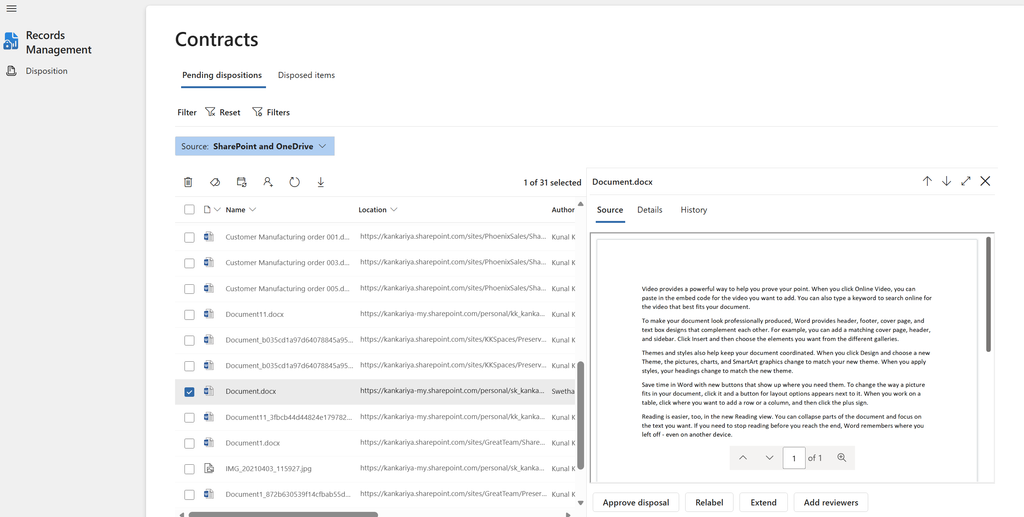
To preview document content in the mini-review pane, reviewers need a second role group: Content Explorer Content Viewer. Without it, the Source tab in the review pane is inaccessible. They can still see the file name, location, and dates in the Details tab. They can still approve, extend, or relabel the item. But they cannot read the document itself.
So, a reviewer who needs to actually read content before making a disposal decision needs two separate role assignments.
Layer 3: Who can see the full picture
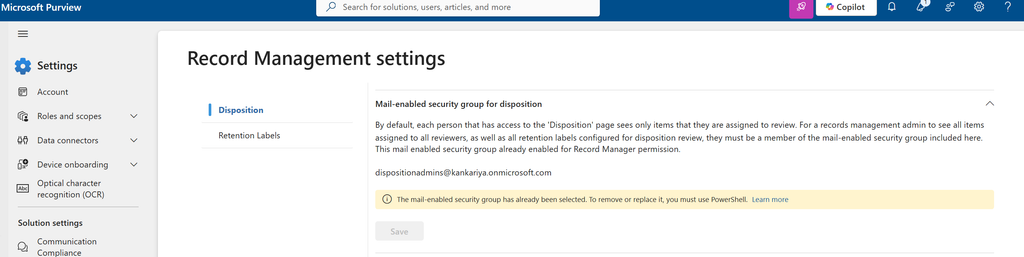
By default, each reviewer sees only the items assigned to them. Which makes sense for individual reviewers. But what about the person responsible for the overall records management programme? The compliance officer who needs to know how many items are pending, which labels have a backlog, whether anything is overdue?
There is a separate configuration step for this, and it is the most overlooked part of Purview disposition review permissions., and it is easy to miss. In Settings under Records Management, you can configure a mail-enabled security group whose members get visibility across all pending disposition reviews. Without this, your compliance leadership is flying blind.
One thing worth knowing before you configure it: once you save this setting in the portal, you cannot change or remove the group through the portal. You need PowerShell. So make sure the right group is in place before you save.
One label. Every site. One reviewer group.
Beyond the three permission layers, there is a structural issue that does not get talked about enough.
Reviewers in Purview disposition review are assigned at the retention label level. Not at the site level. Not at the department level. At the label.
What that means in practice: if you have a “Contracts” label applied across 80 SharePoint sites spanning Finance, Legal, Operations, and HR, every single disposition review for every document with that label lands in the same queue with the same reviewer group. A Finance analyst’s annual report and an HR disciplinary document and a Legal contract all go to the same person.
Some teams try to work around this by creating separate labels per department. That leads to label sprawl and more policies and more reviewer configurations to maintain. It is not a sustainable answer at scale.
The wall nobody warns you about
This is the problem that hits the hardest in real implementations, and it is the one the documentation is least clear about.
The Content Explorer Content Viewer role lets reviewers see document previews in the Purview portal. But that is a Purview-level permission. It does not override SharePoint’s own access controls.
In practice, a reviewer can only read a document in the review pane if they also have access to the SharePoint site where that document lives.
Now think about who your centralised reviewer typically is. An Information Governance Manager. A Data Governance Officer. A Knowledge Manager. Someone whose job is to govern content across the whole organisation, not someone embedded in a specific team with site-level access to everything.
To do their job properly, they would need read access to every SharePoint site whose content might land in their review queue. In a large organisation, that could be hundreds of sites. Security teams are not going to approve that. And honestly they should not. You do not want one person having blanket read access to Legal, HR, Finance, and Operations just so they can approve file deletions.
What actually happens in these situations is that centralised reviewers end up making disposal decisions based on the file name, the location, and the dates visible in the Details tab. Without reading the document. Which raises a real question about whether the human checkpoint is providing the governance value it is supposed to.
A different approach
ExpireIQ was designed with both of these problems in mind from the start, and it tackles them from two directions.
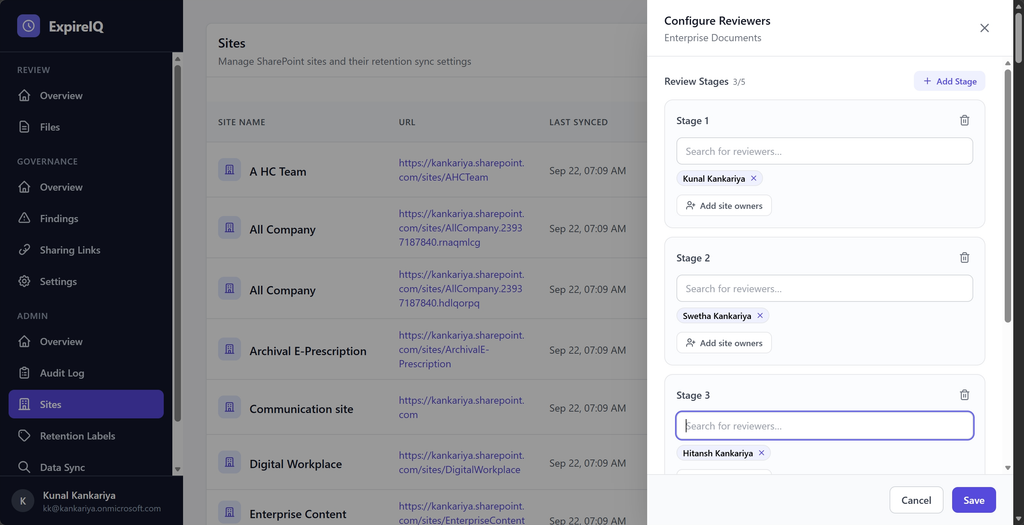
The first is routing. Instead of assigning reviewers at the label level, ExpireIQ routes disposition reviews at the site level. The reviewer for a document on the Legal team’s site can be someone from Legal. The reviewer for a Finance document can be someone from Finance. Same retention label, different reviewer, based on where the content actually lives. Site owners and department leads already have access to their own sites, so for a large share of reviews the access problem simply does not arise.
The second is content visibility. There are always cases where a central reviewer needs to look at something, and granting them site access is not the answer. ExpireIQ handles this with an admin-controlled setting. An administrator can choose to let reviewers see file contents through ExpireIQ itself, without those reviewers being given individual access to every SharePoint site involved. The reviewer gets what they need to make an informed decision. The organisation does not have to hand out broad SharePoint permissions to make disposition review work.
That setting is deliberately a switch and not a default. Letting reviewers see content is a decision with real privacy implications, so it sits with the administrator to turn on knowingly rather than something that happens quietly in the background.
If the per-label limitation or the file access wall is a problem you are running into, ExpireIQ is worth looking at.
Wrapping up
If you are setting up Purview disposition review, here is what to check before you go live.
- The Disposition Management role is not inherited from any other role, including Global Admin. Assign it explicitly.
- Content Explorer Content Viewer is a separate role group. Without it, reviewers cannot read documents during review. Most setup guides do not tell you this.
- Administrator visibility across all reviews needs a separate security group configuration in Records Management settings. Save it carefully because you cannot change it from the portal later.
- Reviewers are assigned per label, not per site. Think through what this means for your organisation’s structure before publishing your labels.
- Centralised reviewers may not have SharePoint access to the content they are reviewing. Test the full end-to-end reviewer experience in your environment before signing it off.
Running into these problems in your tenant?
Paras InfoGov can help you work through it
Whether it is designing a reviewer structure that actually works for your organisation, navigating the permission model, or deciding whether native Purview meets your needs, Paras InfoGov works with compliance teams on exactly these implementation challenges.
And if the per-site reviewer limitation or the file access problem is a blocker for your programme, ExpireIQ was built to solve both.